
To improve your page load speed, the biggest wins come from three key areas: optimizing your images, enabling browser caching, and upgrading your web hosting. Nailing these solves the most common bottlenecks that frustrate customers and tank your search rankings.
Why Your Website Speed Is Costing You Customers
Let's cut right to the chase: a slow website is a silent business killer. This isn't a minor technical glitch—it's a direct drain on your revenue.
Think of your website as your digital storefront. If a potential customer walks in and your salesperson takes forever to greet them, they won't stick around. They'll just turn around and head straight to your competitor. It’s the same online.
Every single second a visitor waits makes them more likely to leave. This isn't a theory; it's a measurable reality that impacts your bottom line. For a small business, this means lost leads, abandoned shopping carts, and a poor first impression you can never get back.

The Millisecond-To-Money Connection
Slow load times don't just annoy people; they actively sabotage your business goals. Google prioritizes sites that offer a great user experience, and speed is a massive part of that equation.
Here’s how this plays out in the real world:
- You lose sales. A potential customer tries to check out your contracting services, but the project photos take an eternity to load. Frustrated, they assume your business is outdated and click away.
- Your rankings drop. Google sees visitors bouncing from your site almost immediately. This signals a poor experience, so it starts showing your competitors above you in search results.
- You waste ad spend. You're paying good money for clicks from a Google Ads campaign, but your slow landing page is driving those expensive visitors away before they even see your offer.
The data is stark. Google's research found that when a mobile page load time goes from 1 second to 10 seconds, the probability of a visitor bouncing skyrockets by 123%.
From Technical Scores To Real Experiences
It's easy to dismiss a one-second delay as trivial, but those milliseconds add up to real money. That small lag is enough to make a customer second-guess their purchase or abandon their cart entirely.
Let's translate those technical delays into tangible business losses.
The Real Business Cost of a 1-Second Delay
| Business Metric | Impact of a 1-Second Delay |
|---|---|
| Page Views | An 11% drop in visitor engagement. |
| Customer Satisfaction | A 16% decrease in satisfaction. |
| Conversion Rate | A 7% loss in sales and leads. |
When you see the numbers laid out like that, the urgency becomes clear. A faster site doesn't just feel better—it performs better across every metric that matters. For a deeper dive, check out this guide on understanding the importance of website speed.
The takeaway: Website speed isn't just a feature—it's the foundation of a good customer experience. A fast site builds trust, while a slow one actively pushes revenue out the door.
Since most web traffic now comes from smartphones, a fast mobile site is non-negotiable. If you need a refresher, our guide on how to make your site mobile-friendly is a great place to start. Honestly, fixing your site speed is one of the highest-ROI investments you can make for your business online.
How to Measure Your Website's Current Speed
Before you start tinkering, you need to know what you're up against. Jumping in and making random changes is like trying to navigate a new city without a map—you’ll get lost and frustrated.
To move the needle on your page load speed, we first need a clear, data-backed report card on its current performance. This isn't guesswork. It's about using the right tools to see what your customers actually experience.
The best part? The most effective tool for this job is completely free and run by Google.
Using Google PageSpeed Insights
Our go-to starting point is always Google PageSpeed Insights. It's straightforward: plug in your website's URL, hit "Analyze," and it spits out a detailed report with a performance score for mobile and desktop.
Here’s a crucial piece of advice we give every client: don't get obsessed with scoring a perfect 100. That number is just a guide. What truly matters for your business are the real-world experience metrics, which Google calls Core Web Vitals. These tell the real story of how fast your site feels to a visitor.
A common mistake we see is people chasing a perfect score while ignoring the metrics that actually impact their bottom line. A site with a score of 85 that feels lightning-fast is far better than a site with a 95 that still feels clunky.
Focusing on What Really Matters
When you get your report, you’ll see a wall of numbers and technical jargon. Ignore most of it. I want you to zoom in on one specific metric: Largest Contentful Paint (LCP).
Think of LCP as your site's "first impression" metric. It measures how long it takes for the largest, most important piece of content on your page—usually a big banner image or the main headline—to finally appear.
This is why LCP is so critical:
- Under 2.5 seconds: This is Google's benchmark for a good experience. If your LCP is in this range, visitors see what they came for almost instantly. That builds trust and keeps them on your site.
- Between 2.5 and 4.0 seconds: This is the "needs improvement" zone. At this speed, people start to notice the delay. A potential lead looking at a portfolio site might click away if the main project photo takes this long to show up.
- Over 4.0 seconds: This is considered poor. Plain and simple, you're actively losing customers here. The probability of someone bouncing before your page even loads skyrockets.
Running this test gives you a concrete starting point. You'll know how your site is performing and have that LCP number to guide your next steps. This diagnostic is a core part of our process, which you can see in our complete web audit checklist.
With this baseline, you can start making targeted improvements and—most importantly—measure your progress afterward to see the real impact of your work.
Taming the Biggest Speed Killer: Unoptimized Images
If your website feels sluggish, the culprit probably isn't complex code. For most businesses, the number one reason for a slow site is simpler: bloated images. If you've ever uploaded photos straight from your phone or a professional camera without a second thought, this is for you.
It's a common mistake with a massive impact. That gorgeous, high-resolution photo from a professional shoot can easily be several megabytes (MB) in size. When a visitor's browser has to download multiple huge files just to render your homepage, the entire experience grinds to a halt.
Why Image Size Is a Business Problem
Let's put this in perspective. Imagine a home builder's website with a beautiful gallery of recent projects. If each of the 20 photos is 5 MB, a potential customer has to download a whopping 100 MB of data just to see their work. On a mobile connection, that's not just slow—it's a dealbreaker. The visitor gets frustrated, gives up, and clicks away to a competitor.
The goal isn't to use blurry, unprofessional images. It's to find the balance: visuals that look sharp and compelling but are delivered in the smallest possible file size. This is where most websites drop the ball, and it's your single biggest opportunity for a quick performance win. To get this right, consult a good guide to sizing images for websites.
The data backs this up. Industry analysis consistently shows that images are the single largest contributor to page weight, often accounting for 75% of a typical page’s total size. By simply compressing and correctly sizing your images, you can slash your load times.
This visual guide shows the process of measuring your site's speed and seeing how images impact crucial metrics like your Largest Contentful Paint (LCP).
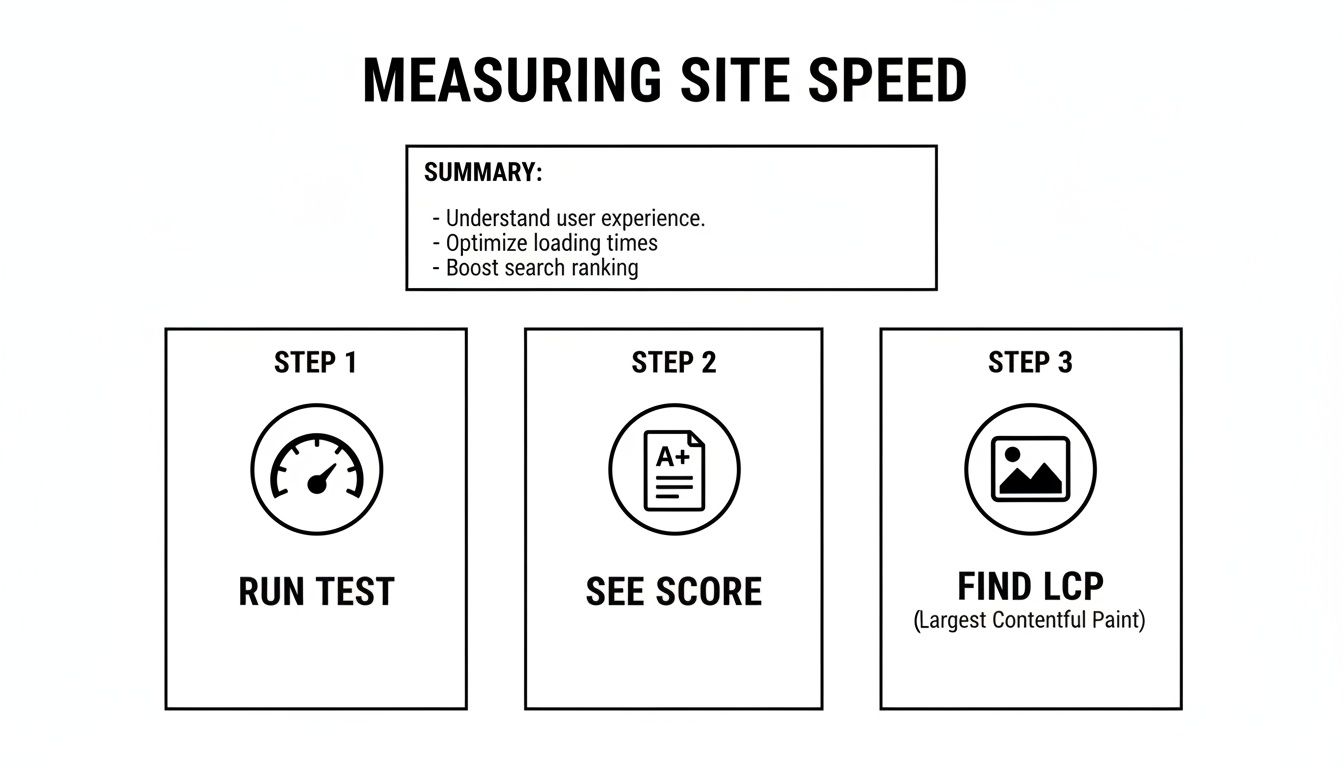
Running a test like this connects the dots between a vague performance score and the specific elements—like that oversized hero image—that are holding your site back.
Your Action Plan for Faster Images
You don't need to be a graphic designer to solve this. Here are the most effective strategies we use for our clients, broken down into simple, actionable advice.
Compress Images Before You Upload
This is the golden rule. Never upload an image at its original file size. Use a free online tool like TinyPNG or Google's Squoosh to compress them first.
It's a quick drag-and-drop process that can shrink file sizes by 50-80% with virtually no noticeable drop in quality. It takes 10 seconds and makes a world of difference.
Use Modern Image Formats Like WebP
Get familiar with WebP. It's a next-generation image format from Google that provides fantastic quality at a much smaller file size than old-school JPEGs or PNGs.
For WordPress users, this is incredibly easy. Many optimization plugins can automatically convert your existing images to WebP and serve them to compatible browsers. This one change can have a massive, immediate impact on your page speed.
Implement Lazy Loading
Lazy loading is a clever trick that tells a browser to only download the images visible on the visitor's screen. As they scroll down the page, other images load just in time, right before they appear.
This creates the perception of an almost instant-loading page. Instead of waiting for every single image on a long page to download, the visitor gets the critical, above-the-fold content immediately.
This is a game-changer for image-heavy pages, like a restaurant menu, an e-commerce category page, or a project portfolio. Most modern WordPress caching and optimization plugins let you enable lazy loading with a single click.
Practical Image Optimization Techniques
To help you decide where to start, here's a quick-reference guide to the most effective image optimization methods. We've compared their impact, the effort required, and our recommended tools for the job.
| Technique | Impact on Speed | Effort Level | Recommended Tool |
|---|---|---|---|
| Image Compression | High | Low | TinyPNG, Squoosh |
| Next-Gen Formats (WebP) | High | Low | EWWW Image Optimizer, Smush |
| Lazy Loading | High | Low | WP Rocket, Perfmatters |
| Proper Sizing | Medium | Medium | Photoshop, Canva, a good guide |
By focusing on compression, next-gen formats, and lazy loading, you can tackle the most common and damaging speed issue plaguing business websites today.
Once you've gotten your images in shape, the next major performance gains are found under the hood. The principles are straightforward and can make a night-and-day difference in how fast your pages load.
Let's use an analogy: think of your website as a busy restaurant kitchen. The first time someone orders a complex dish, the chef has to prep every ingredient from scratch. But if that same customer orders the dish again, a smart chef will have some key components prepped and ready to go.
That's precisely what caching does for your website.
Give Your Website a Better Memory
Every time someone lands on a page, their browser has to ask your server for all the individual pieces needed to assemble it: images, scripts, style files, you name it. Caching saves a ready-made version of that page—a "snapshot"—either on your server or in the visitor's browser.
The next time that person visits, their browser grabs the saved copy instead of going back to the server for everything. This means fewer back-and-forth requests and a noticeably faster experience for anyone who comes back to your site.
Think about a local plumber. A potential customer might visit your site, look around, then come back later to find your phone number. Caching ensures that second visit is instantaneous, reinforcing that you run a professional operation.
The Business Impact: Caching improves the experience for your repeat visitors and loyal customers. It transforms a slow, multi-step data request into a single, quick delivery, which is essential for building trust.
For most WordPress site owners, you don't need to be a developer to make this happen. A good plugin can do all the heavy lifting.
- WP Rocket: Our go-to premium caching plugin. It's a paid tool, but its simple setup delivers incredible results right out of the box. For any serious business, it's an investment that pays for itself in performance gains.
- W3 Total Cache: A powerful and popular free option. It offers a lot more knobs and dials to turn, but it's a fantastic choice if you're on a smaller budget.
Installing a caching plugin is often one of the quickest, highest-impact changes you can make.
Cleaning Up Your Website’s Code
The other piece of this puzzle is minification. Think of your website’s code (HTML, CSS, JavaScript) as a detailed recipe. A developer writes that recipe with lots of comments, spaces, and line breaks to make it easy for humans to read.
That’s great for developers, but browsers don’t need any of it. All that extra formatting is dead weight, making the files bigger and slowing down the download.
Minification is an automated process that strips out all those unnecessary characters. It's like tidying up a messy workbench—it creates a clean, compact, and efficient version of your code files.
Smaller files simply download faster. A minified file can easily be 30-50% smaller than the original, which directly translates to faster load times for every visitor. And just like with caching, plugins like WP Rocket can handle minification for you automatically. It's a set-it-and-forget-it tweak that ensures your site is running as lean as possible.
Choosing the Right Foundation with Hosting and a CDN
Think of your website like a physical storefront. Your web host is the building it operates from. A cheap, overloaded shared hosting plan is like trying to run a thriving business out of a tiny, cramped storage unit—it’s going to slow you down.
So much of your page load speed is determined at the server level. If that foundation is weak, all the other optimizations you make are just band-aids on a bigger problem. Upgrading your hosting is often the single most powerful move you can make for a faster, more reliable website.
Why Better Hosting Is a Business Investment
On a basic shared hosting plan, you're sharing server resources—memory, processing power, everything—with hundreds of other websites. If one of those sites gets a sudden traffic spike, your site pays the price and slows to a crawl. It's a "noisy neighbor" problem that's completely out of your hands.
This is where upgrading to managed WordPress hosting changes the game. It’s like moving your shop from that shared storage unit into its own dedicated commercial building.
- You get dedicated power. The server is specifically configured for WordPress, meaning faster processing and quicker delivery of your pages.
- It’s far more reliable. With fewer sites on the server, you’re not at the mercy of others. Your performance stays consistent, even during traffic surges.
- Support is on another level. When you invest in premium hosting, you get access to expert support that can actually help you troubleshoot performance issues.
If you’re serious about your website generating leads and sales, you need a hosting environment built for that purpose. To see the tangible difference, take a look at our breakdown of the best managed WordPress hosting providers and how they compare.
Adding a CDN for Global Reach
Once your hosting foundation is solid, the next step is to make sure your site is fast for everyone, regardless of their location. This is where a Content Delivery Network (CDN) comes into play.
A CDN is a global network of warehouses for your website’s files. Instead of shipping every product from a single headquarters, you store copies of your most popular items in facilities all over the globe.
When a customer in another country places an order, it ships from the closest warehouse, not your main office. It arrives faster. A CDN does the same thing for your website’s images, code, and other assets. It stores cached copies on servers worldwide, so a visitor’s browser always pulls files from the nearest, fastest location.
A CDN transforms your website from a local operation into a global one. It ensures your site loads just as quickly for a potential client across the ocean as it does for someone right next door.
This is especially crucial for mobile users, who often have less stable connections. Globally, mobile performance lags behind desktop; average load times on mobile can be a staggering 70% slower. Using a CDN is one of the most effective ways to close that gap and provide a consistently fast experience. You can find more data on these performance gaps on Toolsetter.com.
Making these infrastructure decisions—upgrading your hosting and implementing a CDN—isn’t just a technical tweak. It’s a strategic investment in the performance and reliability of your online business.
Your Page Speed Questions, Answered
Over the years, we've helped dozens of business owners get their slow websites back on track. In that time, the same questions come up again and again. Here are clear, straightforward answers to what you're probably wondering.
Think of this as the final part of our chat, where we tackle those practical "what ifs" and "should I's" that pop up when you start digging into page speed.
What Is a Good Page Load Speed to Aim For?
Faster is always better, but a fantastic target is getting your key pages loading in under two seconds. If you want a technical benchmark, Google considers a Largest Contentful Paint (LCP) of less than 2.5 seconds to be good, so that's a solid goal.
Here’s our most practical advice, especially for e-commerce sites: run your top three competitors through Google PageSpeed Insights. Your first and most important goal should be to be noticeably faster than them.
Do Website Builders like Squarespace or Wix Cause Slow Speeds?
They can, but it’s not a definite yes. Platforms like Squarespace and Wix are built for ease of use, which means they often load extra code in the background that can bog things down. You have less control over the server, but the core principles in this guide still apply.
The trick is to be ruthless about optimizing your images before you upload them. You also need to be picky about any third-party apps or custom code snippets you add. Those are almost always the biggest performance killers on these platforms.
You don't have total control, but you can still make a huge difference. By focusing on your images and being minimalist with add-ons, you can have a fast site on a website builder.
How Often Should I Check My Website Speed?
We recommend a quick check at least once a quarter. You should also test your speed after any significant change, like installing a new plugin or adding a new tracking script for your marketing campaigns.
If you run a high-traffic site or an online store where speed is directly tied to revenue, checking in monthly is smart business. It helps you catch small issues before they snowball and start costing you sales.
Can I Do This Myself or Should I Hire a Developer?
You can absolutely make a massive difference on your own. Most big speed problems come from a few common culprits. By following the advice in this guide on image optimization, caching, and choosing the right hosting, most people can solve the bulk of their speed issues.
If you've tackled all the low-hanging fruit and your site still feels sluggish, that's the time to call in a pro. When performance reports point to complex issues like render-blocking resources or server response times, an expert can perform a deeper technical audit and fix what you can't.
A fast, reliable website is your best salesperson—it works 24/7 to turn visitors into customers. If you've tried these fixes but are ready for a truly high-performance site that drives real growth, let's talk. We build conversion-focused websites that are as fast as they are effective.